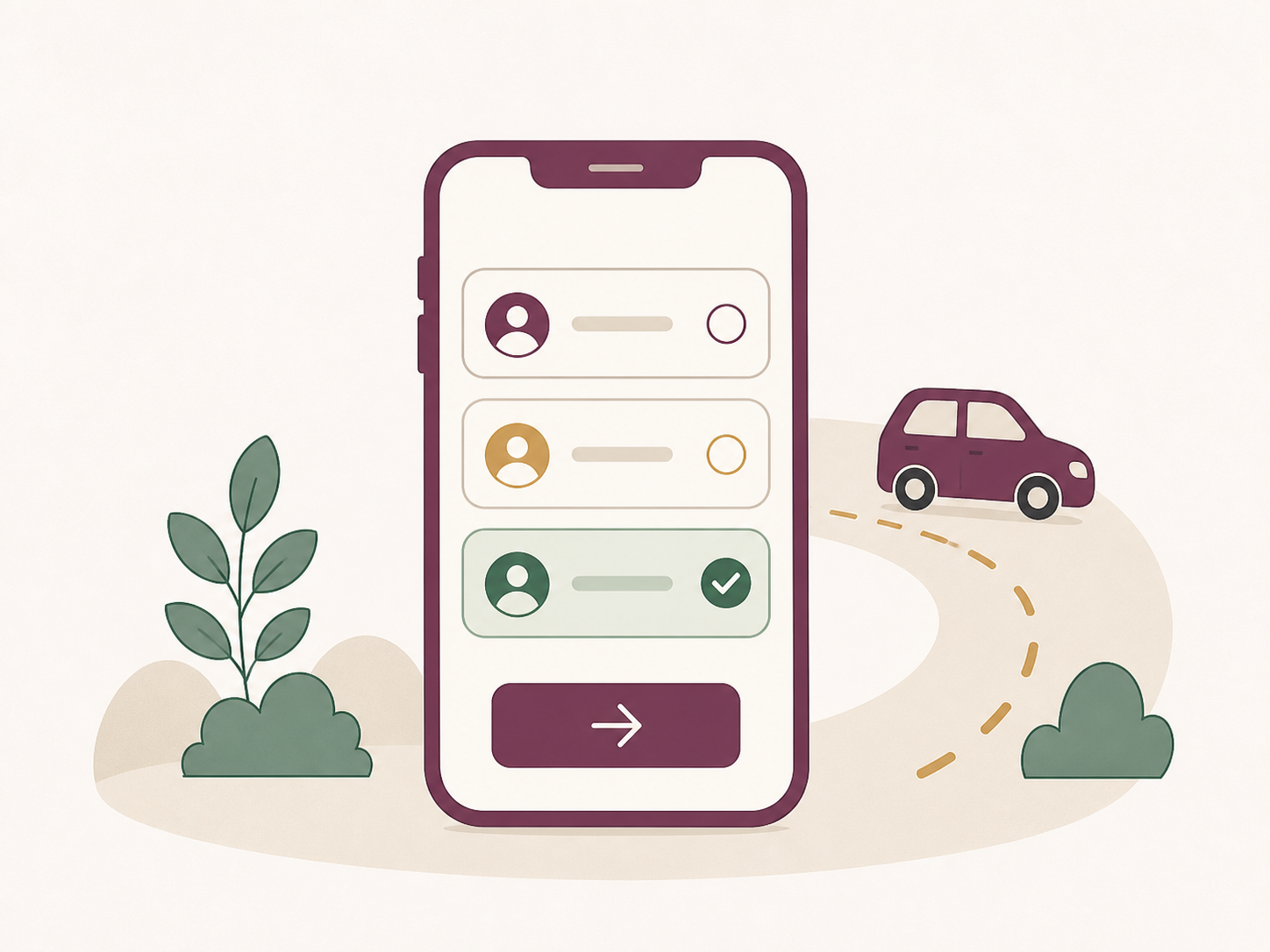
With the new TSGW Carpool system, parents can check in when they are on their way to school and select the children they are picking up that day. This gives the school advance notice so students can be ready when the car arrives.
The system can also check you in automatically when you are close to school, so you do not need to use your phone while driving. The goal is a smoother pickup with less waiting for parents, students, and staff.
Clear permissions and security
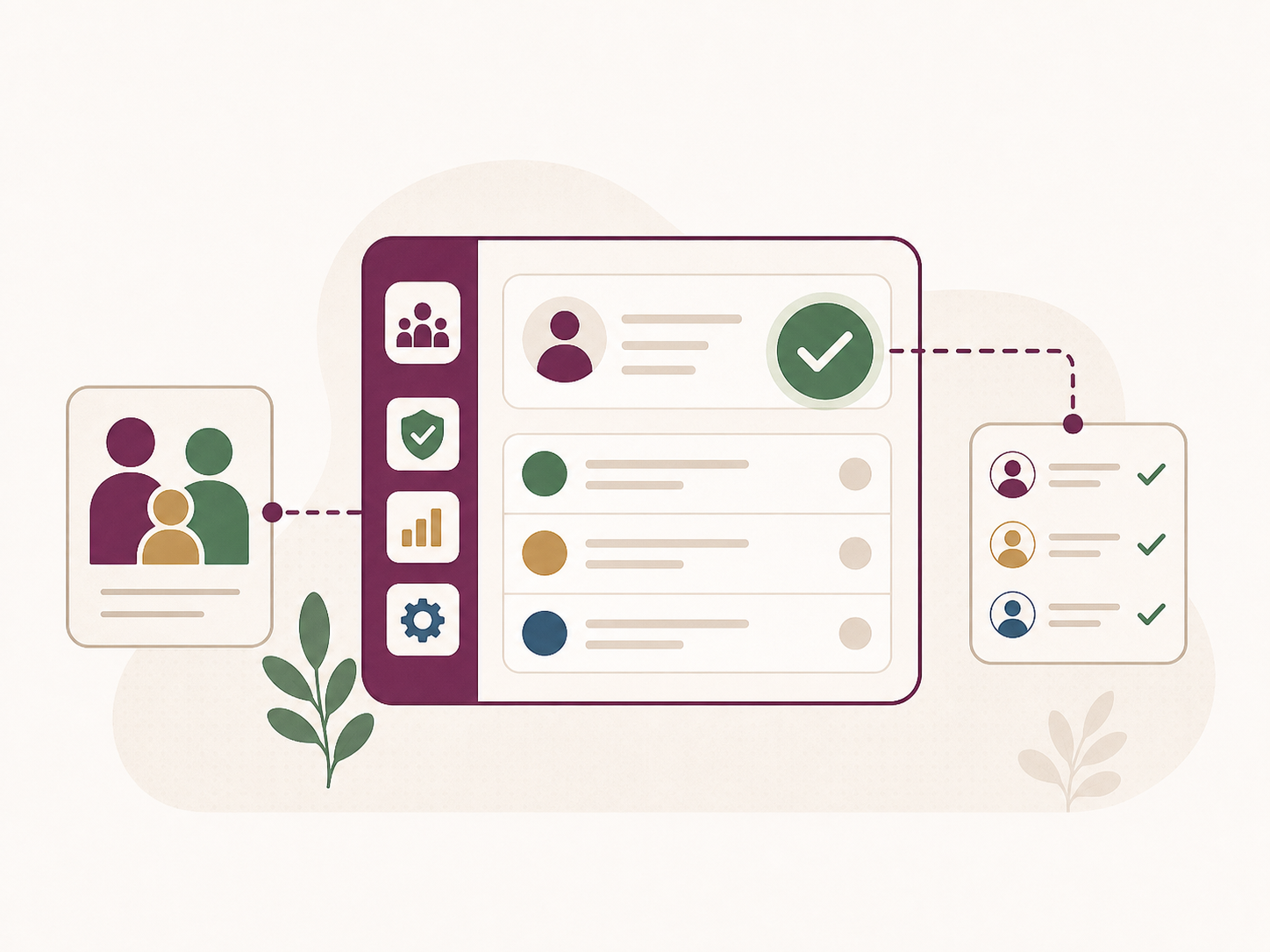
The system will also help with carpool permissions. Parents will be able to give other families permission to pick up their children, helping everyone clearly know who is allowed to pick up whom.
When another family has permission, those children can appear as approved pickup options for that family. This keeps dismissal organized and safe because parents and staff can rely on the system instead of memory, verbal requests, or last-minute confusion in the car line.
Clear logs and records
The system keeps a clear history of pickup activity, including which family checked in and which students were requested. That record gives the school a reliable way to review what happened during dismissal instead of depending only on memory or handwritten notes.
This is important for safety. If a question comes up later, staff can look back at the pickup history and understand who was involved, when the request was made, and which students were included. Clear records help the school stay organized, respond to concerns, and keep dismissal accountable.
How it works
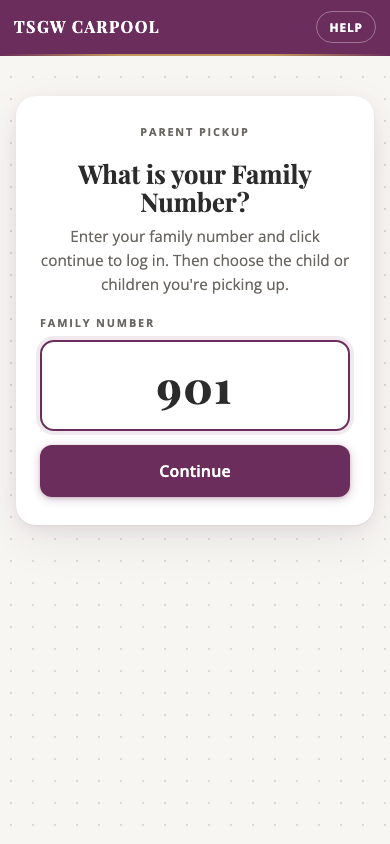
Parents use their Family Number to tell the school who they are here to pick up. The classroom display updates right away, using only students connected to that family or already approved for pickup.
1
Sign in on the parent page
Open the pickup website and enter your Family Number. No app or password is needed.
2
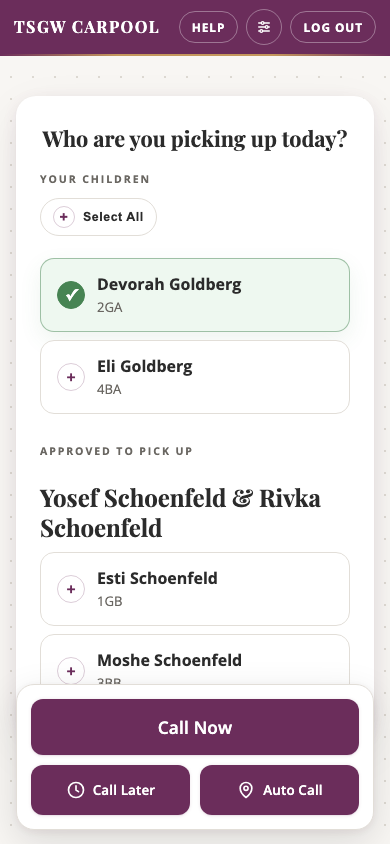
Choose who you are picking up
Tap each child you are taking. The button at the bottom shows how many children are selected.
3
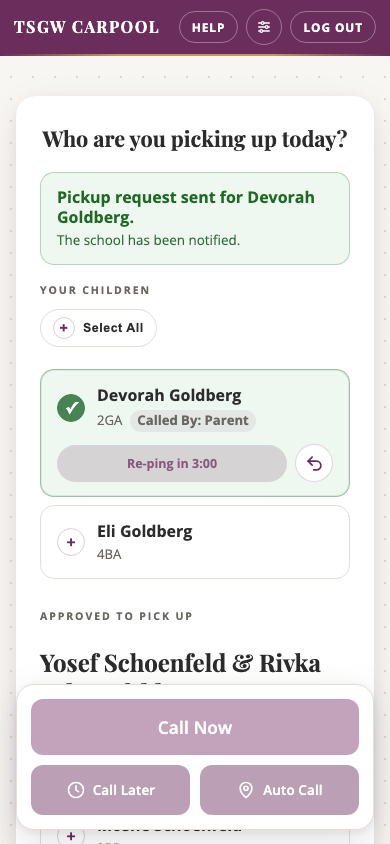
Tap I'm Here
The parent page confirms that the pickup request was sent and shows the child as already called.
4
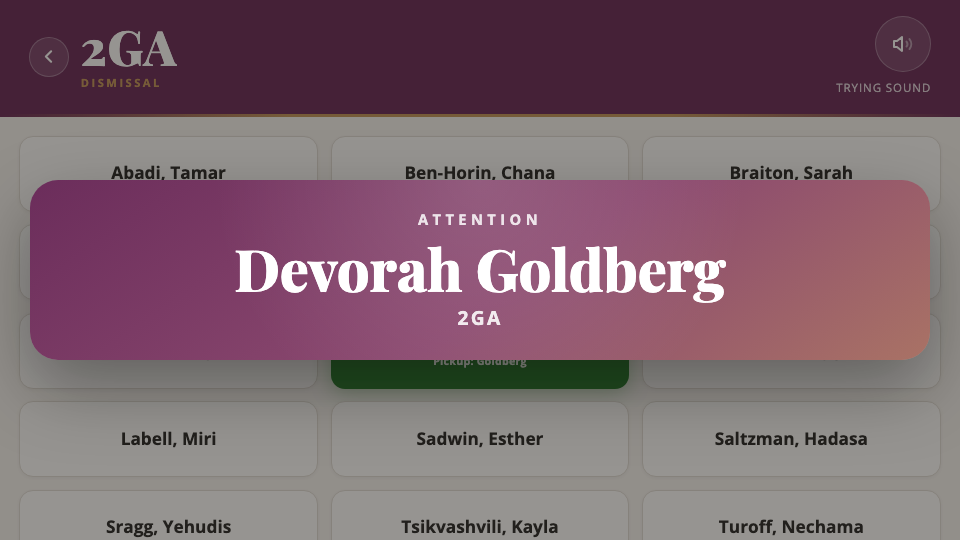
The classroom display lights up
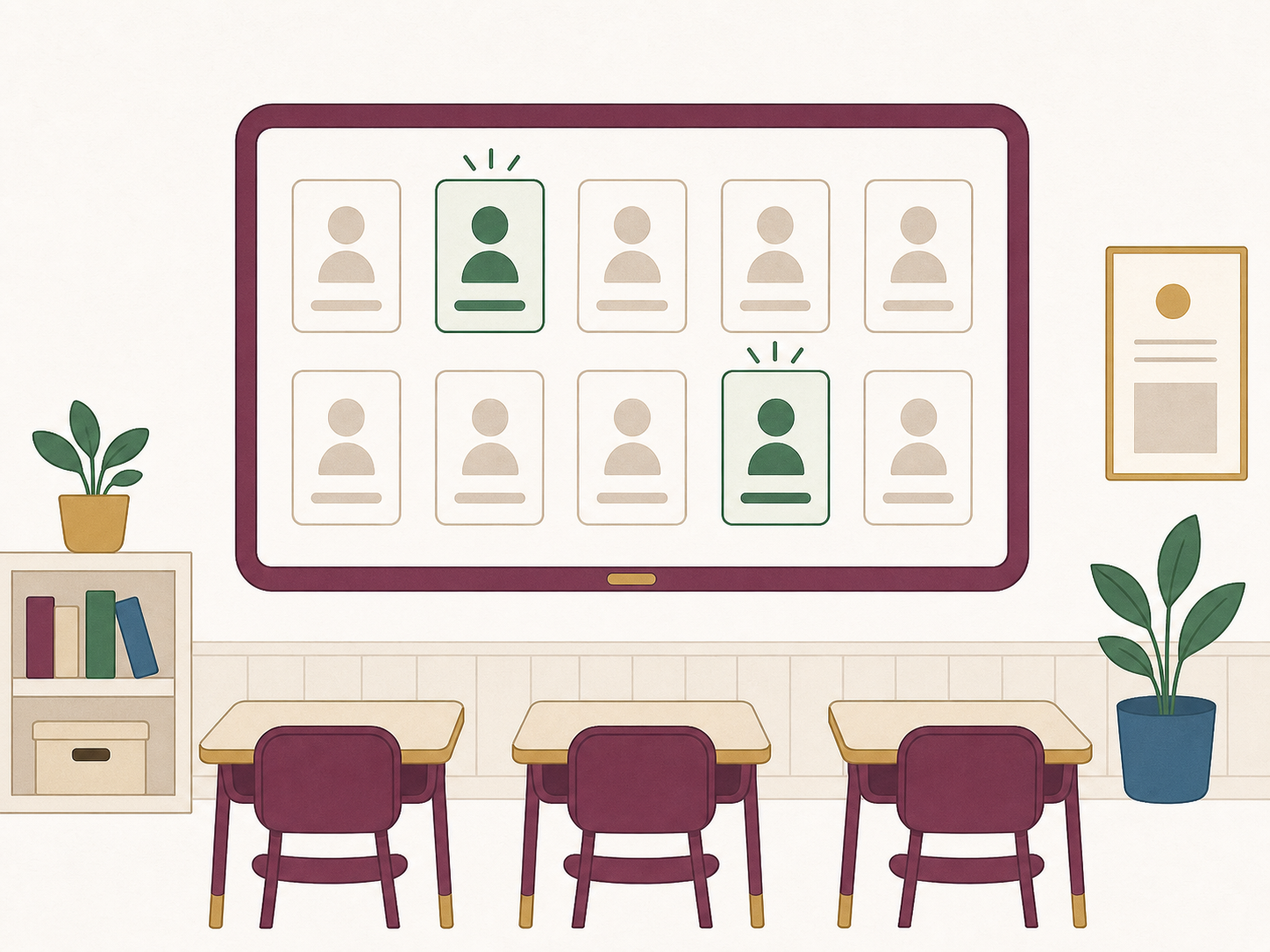
The selected student appears on the classroom screen, and the student card turns green so staff can send the child out.
Who sees what?
Each step gives the right person the right information at the right time, so pickup can move without extra phone calls or guesswork.
1
Parent phone
Parent enters their Family Number, chooses the children they are picking up, and sends the request.
2
School system
The system checks family connections and pickup permissions, then records the request for staff.
3
Classroom display
The selected student lights up on the classroom screen so staff know who should head out.
4
Pickup line
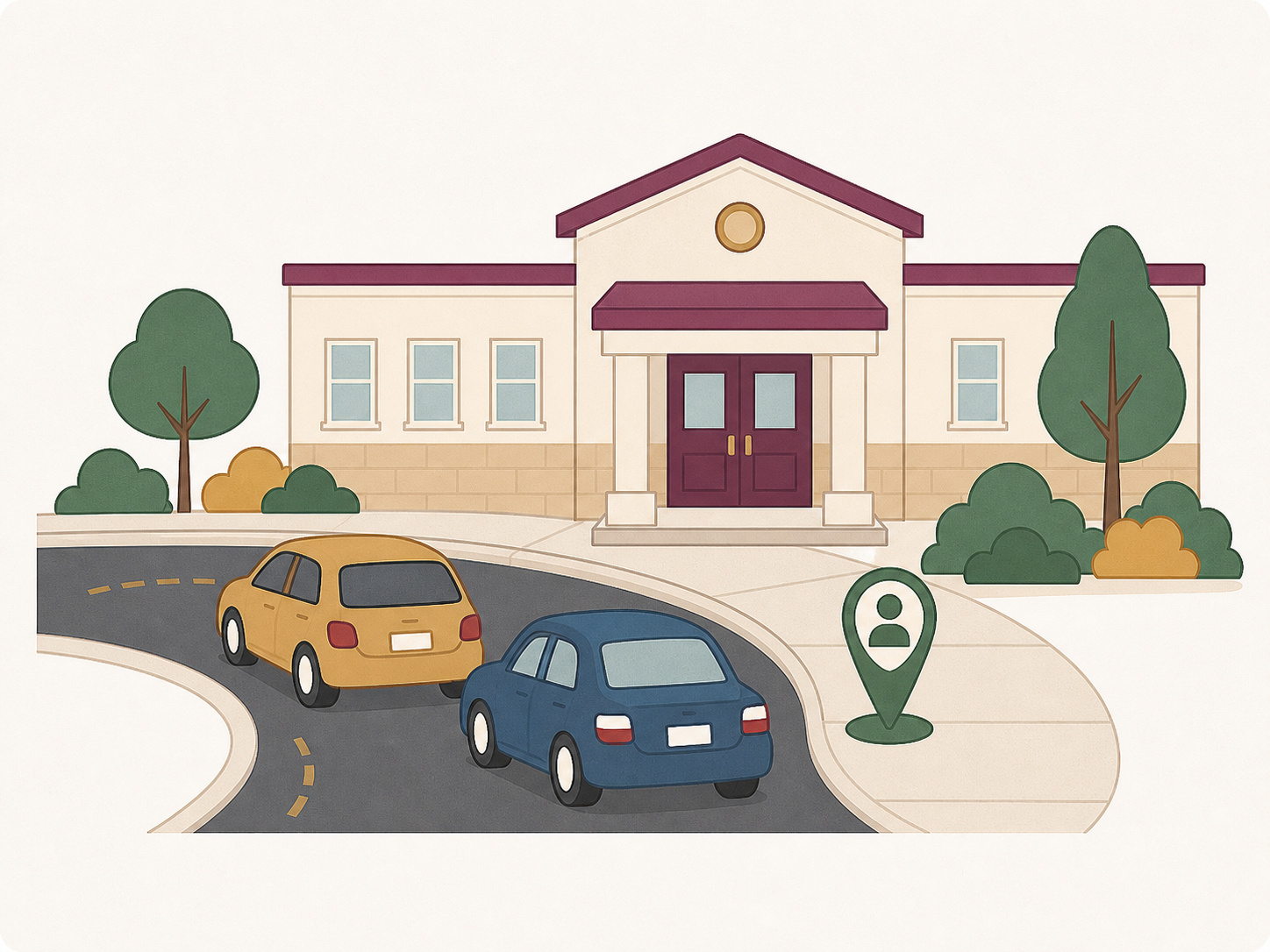
When the car arrives, the student is already on the way or ready nearby, helping the line keep moving.